You haven't signed in yet, you can have a better experience after signing in
XunJie Video Multimedia Video Format Converter Software
Activity Rules
1、Activity time:{{ info.groupon.start_at }} ~ {{ info.groupon.end_at }}。
1、Activity time:cease when sold out。
2、Validity period of the Group Buying:{{ info.groupon.expire_days * 24 }} hours。
3、Number of Group Buying:{{ info.groupon.need_count }}x。
Please Pay Attention
1、Teamwork process: Join/initiate a Group Buying and make a successful payment - Within the validity period, the number of team members meets the activity requirements - Group Buying succeeded!
2、If the number of participants cannot be met within the valid period, the group will fail, and the paid amount will be refunded in the original way.
3、The number of people required and the time of the event may vary among different products. Please pay attention to the rules of the event.
XunJie Video Multimedia Video Format Converter Software
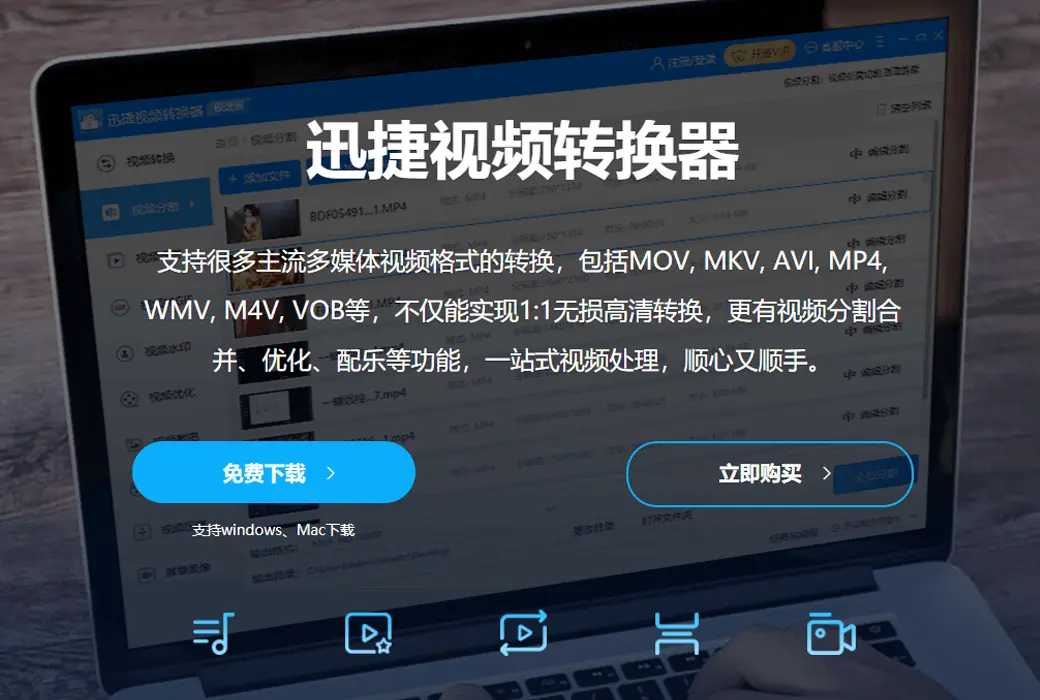
Supports the conversion of most mainstream multimedia video formats, including MOV, MKV, AVI, MP4, WMV, M4V, VOB, etc. Not only can it achieve high-definition and fast conversion, but it also has video segmentation, merging, compression, watermarking and other functions, one-stop video processing, smooth and convenient.
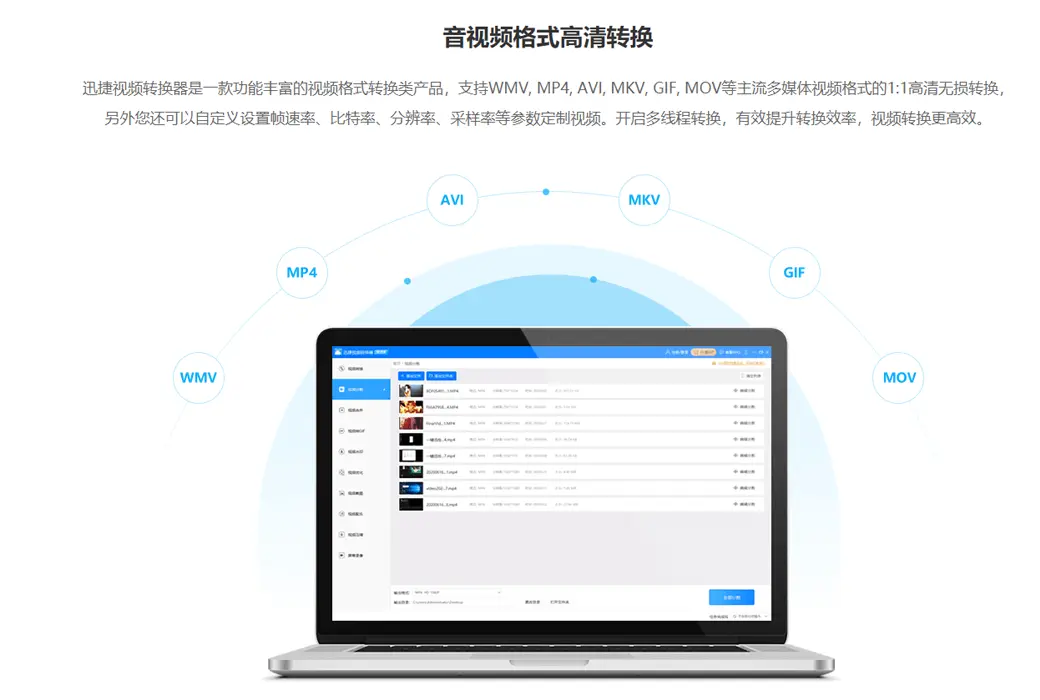
High definition conversion of audio and video formats
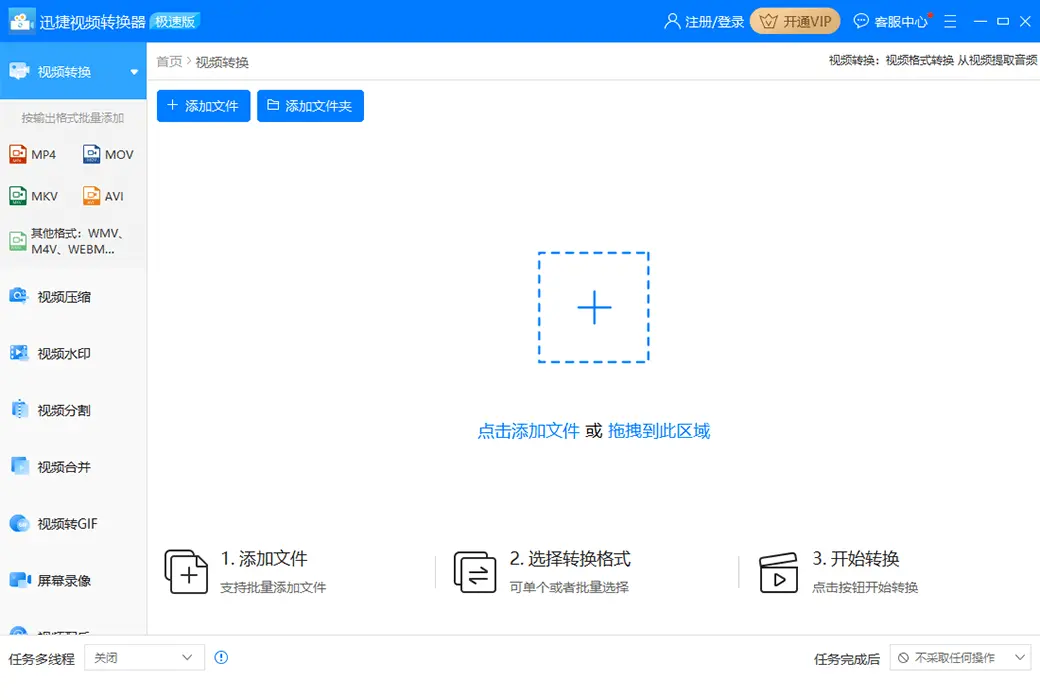
Supports the conversion of mainstream multimedia audio and video formats such as WMV, MP4, AVI, MKV, GIF, MOV, MP3, WAV, AAC, FLAC, etc,
Additionally, you can customize parameters such as frame rate, bit rate, resolution, sampling rate, etc. Enable multi-threaded conversion to effectively improve conversion efficiency and make video conversion more efficient.
Practical video editing and processing tools
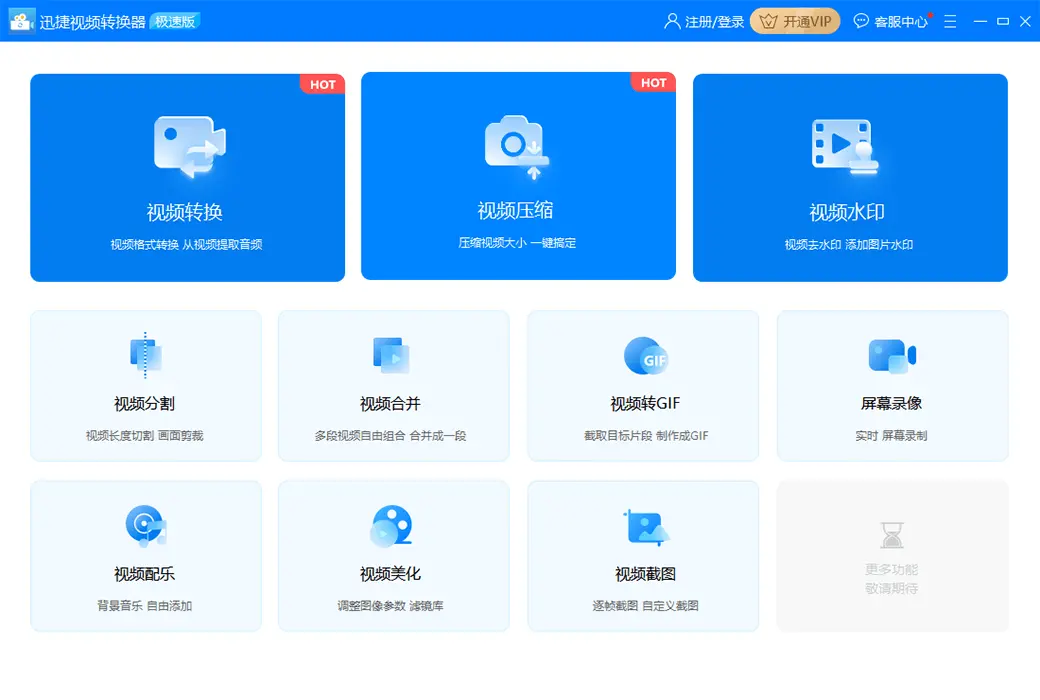
In addition to providing easy-to-use video conversion functions, the Swift Video Converter also supports video editing and processing functions such as video merging and segmentation, screen recording, beautification, music composition, compression, and adding watermarks. The interface is simple and easy to operate, making it easy to process videos.
mp4、flv、mkv、mov、avi、wmv、vob、f4v、mpeg、3gp、webm、ogv、m4v
mp3、ape、flac、aac、m4a、wma、ogg、mav、ac3、m4r

Official website:https://www.xunjieshipin.com/video-converter

Download Center:https://xunjie-video-converter.apsgo.cn
Backup Download:N/A
Delivery time:24-hour automatic shipping
Operating platform:Windows、macOS
Interface language:Supports Chinese interface display, with multiple languages available.
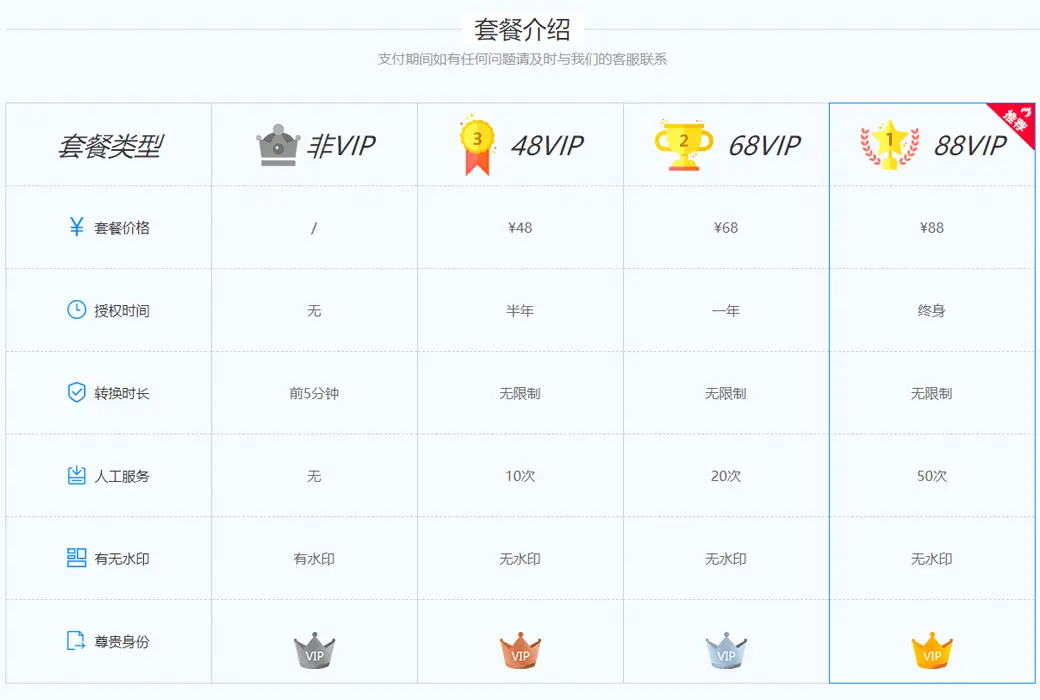
Update instructions:The 1-year version supports 1-year updates and usage, while the lifetime version is promised by the software manufacturer for permanent use and free updates.
Pre purchase trial:Free version with limited functionality before purchase.
How to receive the goods:After purchase, the activation information will be sent to the email address at the time of placing the order, and the corresponding product activation code can be viewed in the personal center, My Orders.
Number of devices:Unlimited installation of equipment.
Replacing the computer:Uninstall the original computer and activate the account by logging in to the new computer.
Activation guidance:https://www.xunjiepdf.com/vip/
Special instructions:The redemption code cannot be saved. You should activate the redemption as soon as possible after purchasing! If the membership benefits have not been credited after successful redemption, you can log out of the software and log in again using your phone number.
Reference materials:https://www.xunjieshipin.com/buy-converter
Any question
1: Record a video
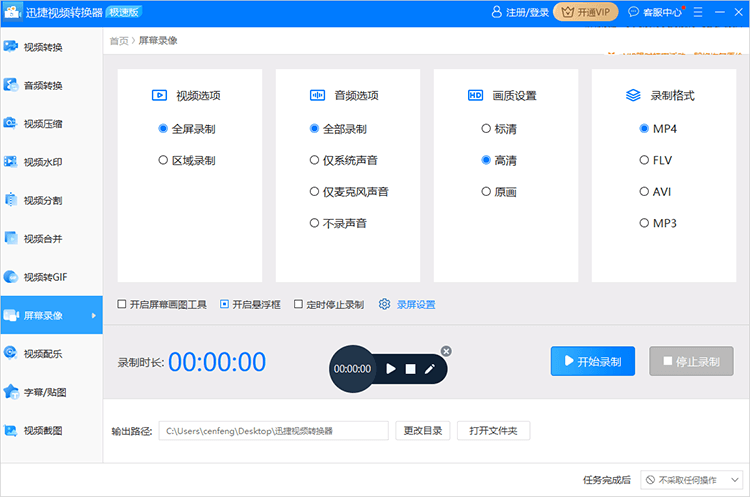
(1) Screen recording settings
After opening the software, select the "Screen Recording" function to set the recording area for the "Video Options" and the sound source for the "Audio Options".
(2) Parameter settings
You can set the image quality and file format for saving screen recording videos in the "Image Quality Settings" and "Recording Format" options.
In the "Screen Recording Settings" option, basic settings such as screen recording shortcut keys, mouse pointer effects, and hidden software interfaces can be set.
(3) Start recording
Click "Start Recording" to record the screen, and during the recording process, you can choose "Pause Recording" or "Continue Recording" at any time to record different content.
(4) End recording
After recording is complete, click "Stop Recording" to end the recording and save the screen recording video.
2: Screen drawing tool
During the screen recording process, you can select "Open Screen Drawing Tool" to annotate and edit the recorded screen image.
3: Screen recording floating frame
The software can select "Enable floating frame" and perform screen recording operations through the shortcut button of the floating frame without opening the software interface.
4: Timed screen recording
The software can set "timed screen recording" to automatically end and save the recorded video when the predetermined screen recording time is reached.